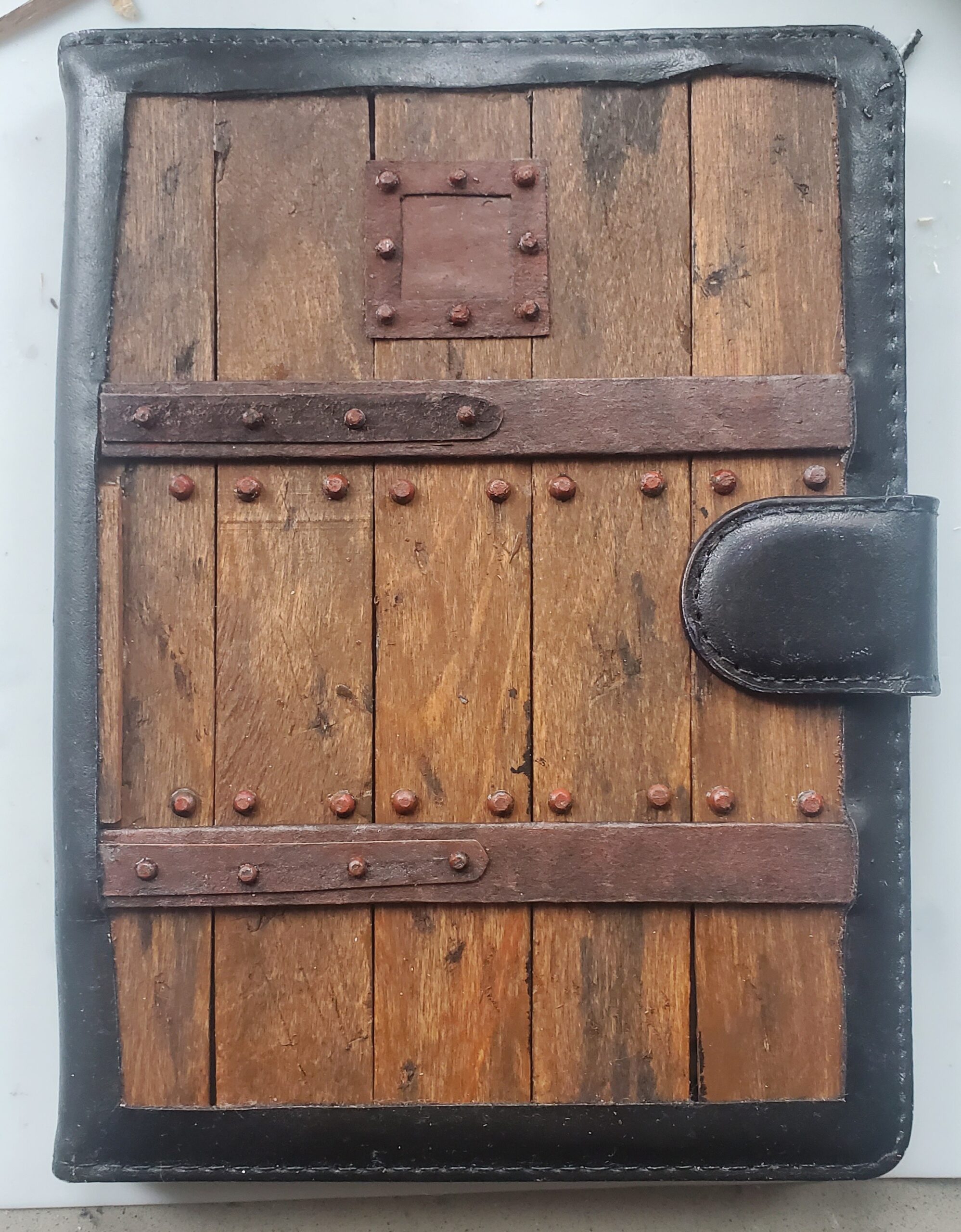
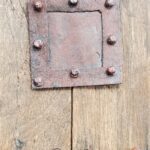
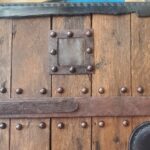
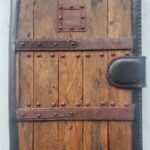
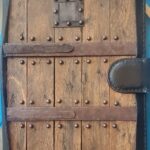
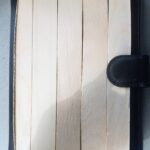
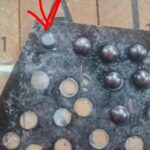
So… I had this crazy idea to make an ereader case with a real wooden dungeon door on the front. I had a spare universal ereader case that I had tried a previous experiment with so I gave it a shot. I used crafting sticks (tongue depressors) for the wood, half beads for the bolts, chipboard for the metal hinge pieces, and some basic acrylic pain for the details/colors. I still want to add a handle to the front clasp, but I may just leave it as-is. Turned out pretty good for a proof of concept – I think I could make it even better if I did it again.
Category Archives: Ereaders
DIY LOTR ereader case
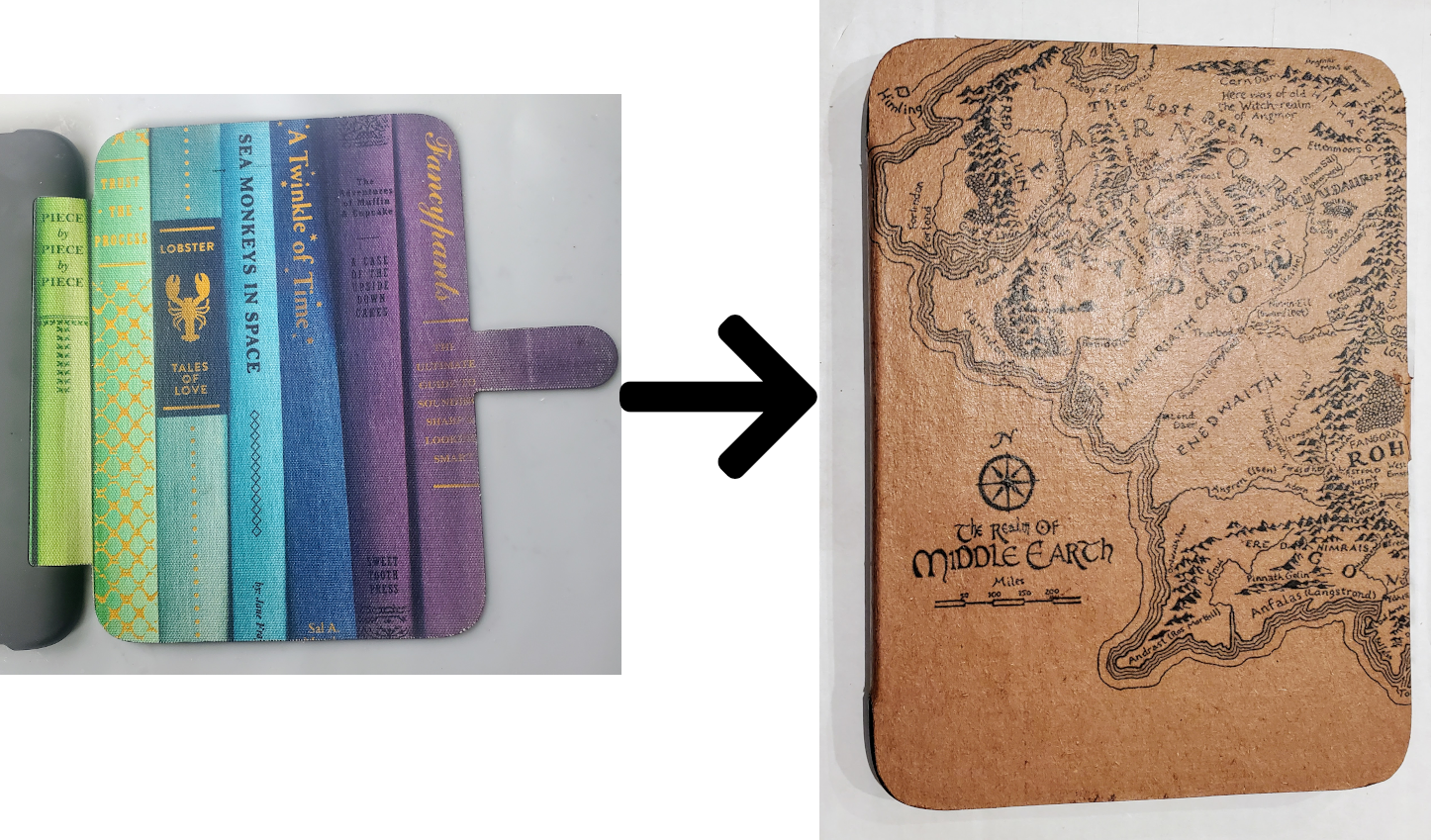
I picked up a used Nook Glowlight Plus with case for a great price, but I didn’t like the look of the case so I redid it with a map of Middle Earth and it cost me next to nothing! This method makes it look a whole lot like leather and the Middle Earth map looks great this way. I’ve done a few different cases with this technique and they all look great. If anyone wants a video tutorial, let me know in a comment. I thought about making one and putting it on YouTube.
How to use Google Drive with KOReader using Webdav and Koofr for free
If you want to be able to get your epubs/ebooks from your Google Drive using Koreader, here’s a free way to do it:
- Put your ebooks into Google Drive (I use FBReader, but you can just use a folder in Google Drive)
- Sign up for a free 10GB Koofr account
- Add Google Drive to your Koofr account
- Create a password to access Koofr via WedDav (it’s at the bottom of https://app.koofr.net/app/admin/preferences/password )
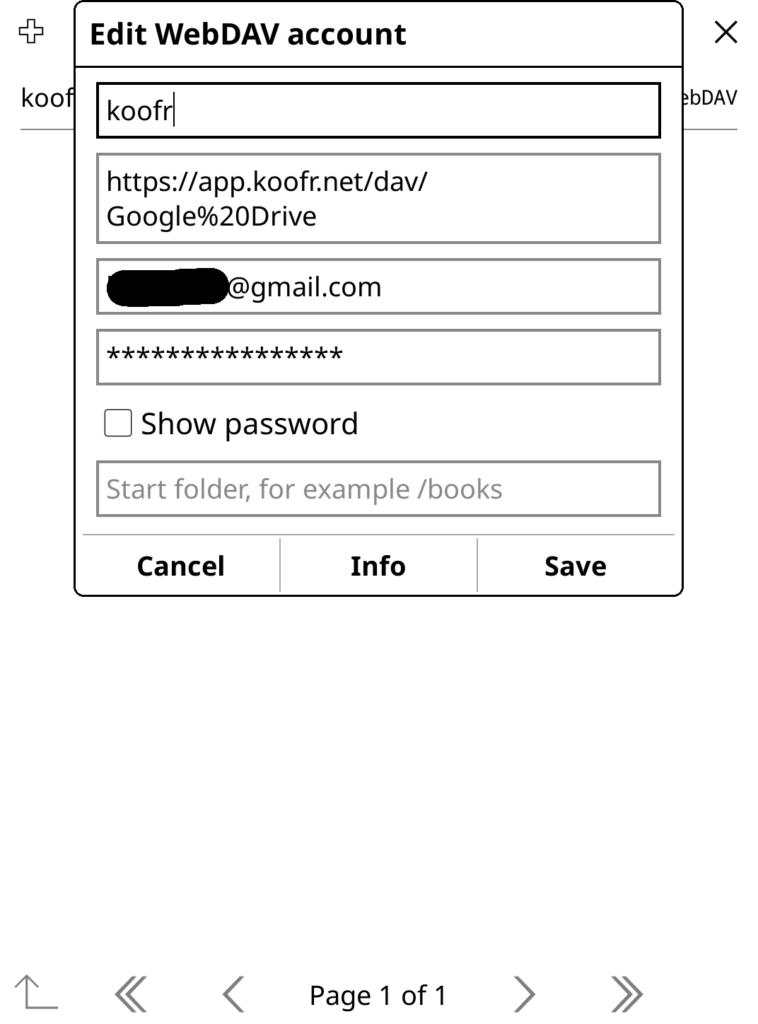
- Add Koofr as a WEBDAV cloud storage option in Koreader and use the password you created in the previous step
Now you can access and download your ebooks from your personal Google Drive storage from within Koreader!
Kindle ereader case with clear window so you can see the book cover

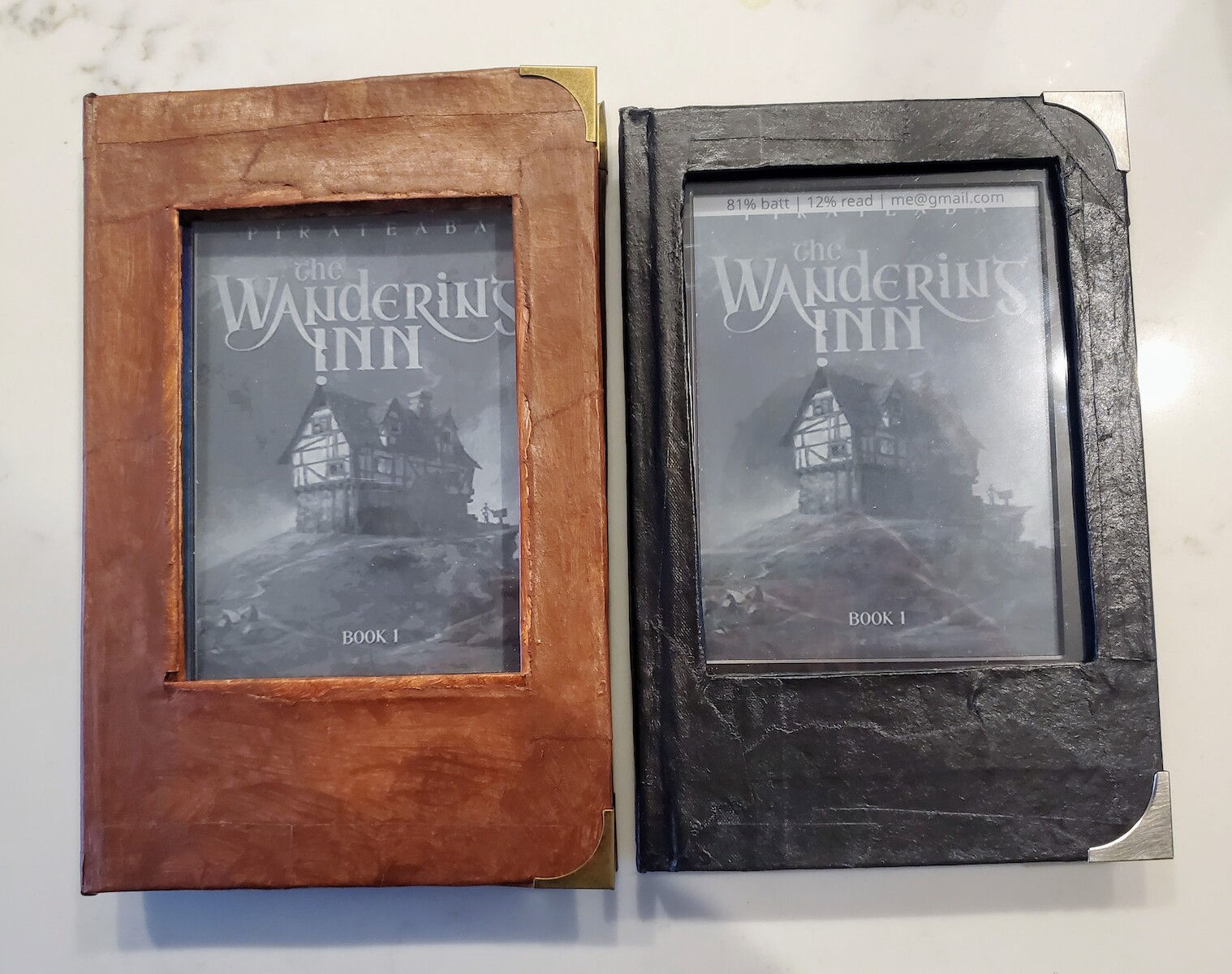
Someone on Reddit asked if this existed. As far as I can tell, it doesn’t (didn’t).
Here are my two proof of concepts. The brown one has a magnet and will turn the screen on/off when it’s opened/closed. The black one does not have a magnet. They both use a piece of plexiglass as the “window”. The brown one has the plexi embedded in the case (the cardboard), where the black one has it attached to the inside cover. I like the black one better because it was WAY easier to make so I’ll create more that look like the black one (though not all black) and add in the magnet. I also have an idea to make the inside left look cleaner (where the plexi is attached).
Pocketbook Touch HD 2 (PB631) – using book covers for the sleep image
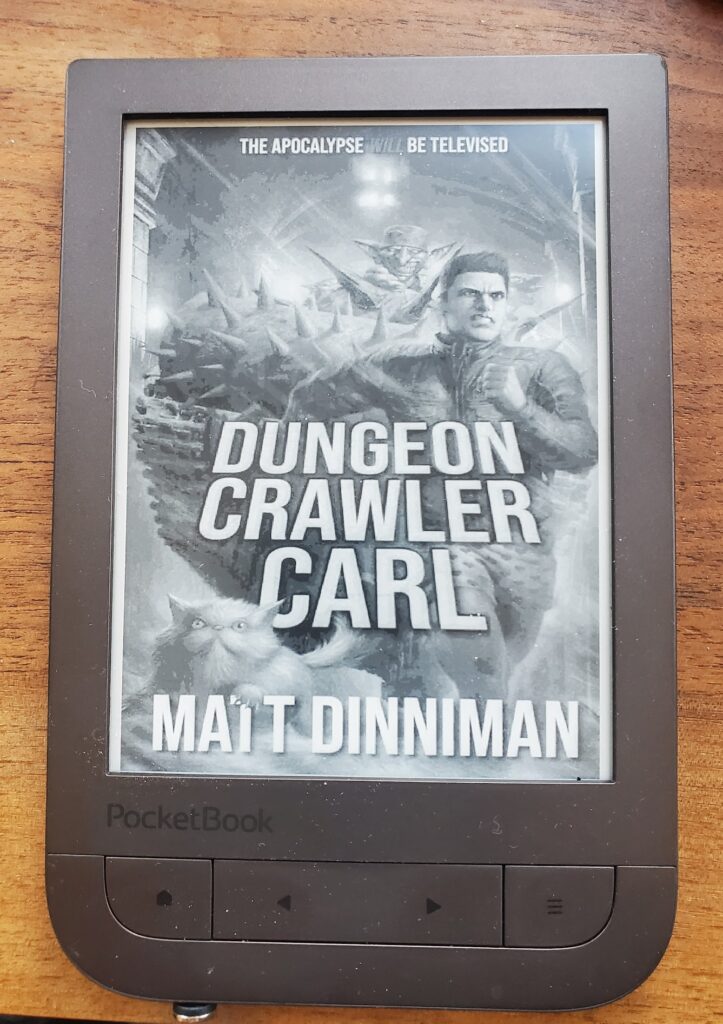
Pocketbook ereader – using book covers from Koreader as the sleep screen image
So far this is confirmed working on:
- Pocketbook Touch HD 2
- Pocketbook Era Color
I REALLY disliked the ZZZ sleep image on my Pocketbook Touch HD 2 (PB631) ereader. On my hacked Kindle, KOReader will show the cover image. I wanted the same thing on the Pocketbook. I googled and searched all over and couldn’t find an answer, but I found clues in a couple places. One was how to replace the boot and startup logos. Another was a tutorial showing how to change the sleep (ZZZ) image to something else (translated to English).
So, here is how to show your book cover instead of the sleep image on a Pocketbook. This should work on some other Pocketbook models, but this is the only one I have so no guarantees.
- plug in your Pocketbook via USB and in the root directory, create system/resources/Line (you will create resources and Line)
- in system/resources/Line create an empty file named taskmgr_lock_background.bmp
- safely disconnect your pocketbook
- on your pocketbook, open KOReader and go to the cog wheel (3rd from left) in the main settings menu. Choose “screen->cover image” then check “save cover image”. Choose “set image path” and choose the location you just created: system/resources/Line/taskmgr_lock_background.bmp. Under “Size, background and format, choose “BMP file format (grayscale) and choose if you want to fit to screen and what background you want. Optionally, change the stretch ratio to threshold. I set mine to 20% so it would fill the screen even if it stretched it.
- now to make this work well, go to the Pocketbook settings-Saving Power and turn on “auto screen lock” and turn off “power off after” so that it will go to sleep but not turn off completely.
One caveat – it appears that the Pocketbook caches in memory the sleep image, so if you change books in KOReader, it will write the cover properly but the Pocketbook won’t use it until you power off and power back on. So, when you start a new book in KOReader, open it, power off, power back on then your cover will be shown. Luckily the Pocketbook restarts pretty quickly and you only have to do it when you start a new book.
UPDATE: if you want to also set the book cover as your poweroff image, try this: https://www.mobileread.com/forums/showpost.php?p=4451675&postcount=7